
Free Online Screen Recorder
Record your screen online for free — with no watermark. Capture screen, webcam, and audio instantly in your browser. No installation required. 100% private local processing.
Screen recording is not supported on mobile devices or your current browser. Please use Chrome or Edge on a desktop computer.
Supported browsers: Chrome, Edge, Firefox/Safari (Limited audio)
Free Desktop Screen Recorder
4K Desktop Screen Recording.
- Record 4K screens, games, and webcams
- Capture any screen area with system audio as MP4
- Stable performance for long recording sessions
Download Bandicam
Record on Windows 11/10/8/7 & Mac ( Bandicam for macOS )
Download Bandicam
Record on Mac & Windows ( Bandicam for Windows )
Start Screen Recording & Save Videos – Free, Online, No Install
 No Watermark
 Annotate While Recording
 No Sign-up Required
 Full HD 1080p Quality
 100% Private (Local Only)
Top Features of Our Free Online Screen Recorder
Record Your Screen Online
Record your screen directly in your browser by choosing a tab, a window, or your entire screen.

Screen Recording with Audio
Capture your screen with system audio, microphone, or both simultaneously.
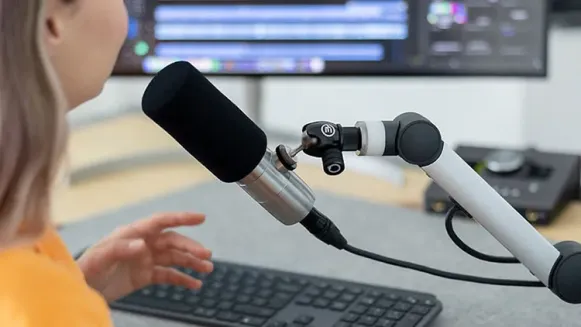
Webcam Recording
Add a webcam overlay while recording your screen online for tutorials and presentations.

Real-time Annotation
Annotate and mark key areas on your screen in real time to create professional tutorials.

Record Your Screen Privately
Record your screen online without uploading files. Everything is processed locally in your browser.
Free Screen Recorder by Bandicam
Choose options, then click "REC" button.
00:00:00
Countdown
Devices
Drawing
Color
Line Width
Output
Resolution1080p
File typeWebM
Need Advanced Features? Try Our Desktop Screen Recorder
The Desktop Screen Recorder offers higher performance, longer recording time, and advanced control for Windows and macOS.


-

Flexible Screen Capture
Record your full screen, a specific window, or any custom area with full support for dual-monitor recording.
-

Webcam and System Audio Recording
Record system audio and microphone input together, with a resizable webcam overlay for picture-in-picture videos.
-

Ultra-High 4K Resolution Recording
Record in crystal-clear quality, supporting up to 4K on Windows and 5K on macOS.
-

Mouse Effects and Click Highlights
Highlight mouse clicks and cursor movements to make tutorials and demos easier to follow.
-

Multi-Format Video Export
Save recordings in MP4, or use native AVI (Windows) and MOV (macOS) formats.
-

No-Lag Game Recording
Record high-frame-rate gameplay smoothly with low CPU usage and no performance lag.
-
-

I was trying several open-source screen sharing/recording software but nothing worked for me. Finally, I used Bandicam screen sharing in my organization machine which every team member was using. It was flawless and the only software I found to capture screen videos. As per my experience, I can say it is the best screen recorder software I have ever used.
-

Best capture program I've used, really good quick-editing companion program as well. Simple interface, game capture and screen capture modes, super low one-time purchase price compared to nearly every other recording program and doesn't give me any problems or performance hit like OBS.
Online Screen Recorder FAQs
How do I record my screen online without downloading software?
To record your screen online without downloading any software, simply select your audio and webcam preferences, click Start Screen Recorder, and choose the browser tab, window, or full screen you wish to capture. It’s a 100% web-based solution for instant recording.
Is this the best screen recorder for Chrome and Mac?
Yes. This is a highly optimized screen recorder for Chrome, Edge, and other Chromium-based browsers. It works seamlessly on both Windows and macOS, allowing users to capture high-quality video without needing to install Mac-specific or Windows-specific applications.
Can I record my screen for free with no watermark?
Absolutely. You can use this free online screen recorder with no watermark. We believe in providing a clean, professional recording experience, so we do not add any branding or watermarks to your exported videos.
Are my screen recordings private and secure?
Yes. Unlike other tools, your data is never uploaded to a cloud server. All recordings are processed locally in your browser, ensuring 100% privacy and security for your sensitive screen, webcam, and audio data.
Can I record screen and audio at the same time?
Yes. You can record your screen with system audio and microphone simultaneously. This feature is perfect for creators who need to record webinars, online meetings, or gameplay with live commentary.
What is the difference between the online and desktop recorder?
The online recorder is perfect for quick, no-install tasks. However, the Bandicam desktop screen recorder offers advanced features like 4K UHD recording, scheduled recording, and hardware acceleration for higher performance on Windows and Mac.
Which browsers are supported for system audio recording?
Our online recorder works best on Chrome and Edge. While you can record your screen on Safari and Firefox, please note that capturing internal system audio is currently restricted by those browsers' security policies. For full audio support, we recommend using a Chromium-based browser.
Can I annotate or draw on the screen while recording?
Yes! You can annotate, highlight, or draw on your screen in real time during the recording process. This is especially useful for teachers and presenters who want to emphasize specific points in their video tutorials or online courses.
What is the maximum recording resolution supported?
The online version supports up to 1080p Full HD recording. For higher resolutions, we recommend the desktop application, which supports up to 4K UHD on Windows and up to 5K on macOS with hardware acceleration for the best performance.
Bandicam gives the best quality screen recordings of any of the recorders that I have tried. This is because it takes advantage of Intel Quick Sync Video a hardware feature of a lot of Intel CPUs. As long as you don't set the quality too high (80% is good) there should be virtually no frame dropping (stuttering) in the video. This applies to 1080p. The quality is as good as the original.